Chat Interface
BB's chat interface is your primary workspace for AI collaboration. Master its features to work efficiently with model configuration, collaboration management, and interactive assistance.
Starting Your First Collaboration
When you create a new collaboration, BB presents a helpful starting interface with categorized task examples to inspire your objectives:
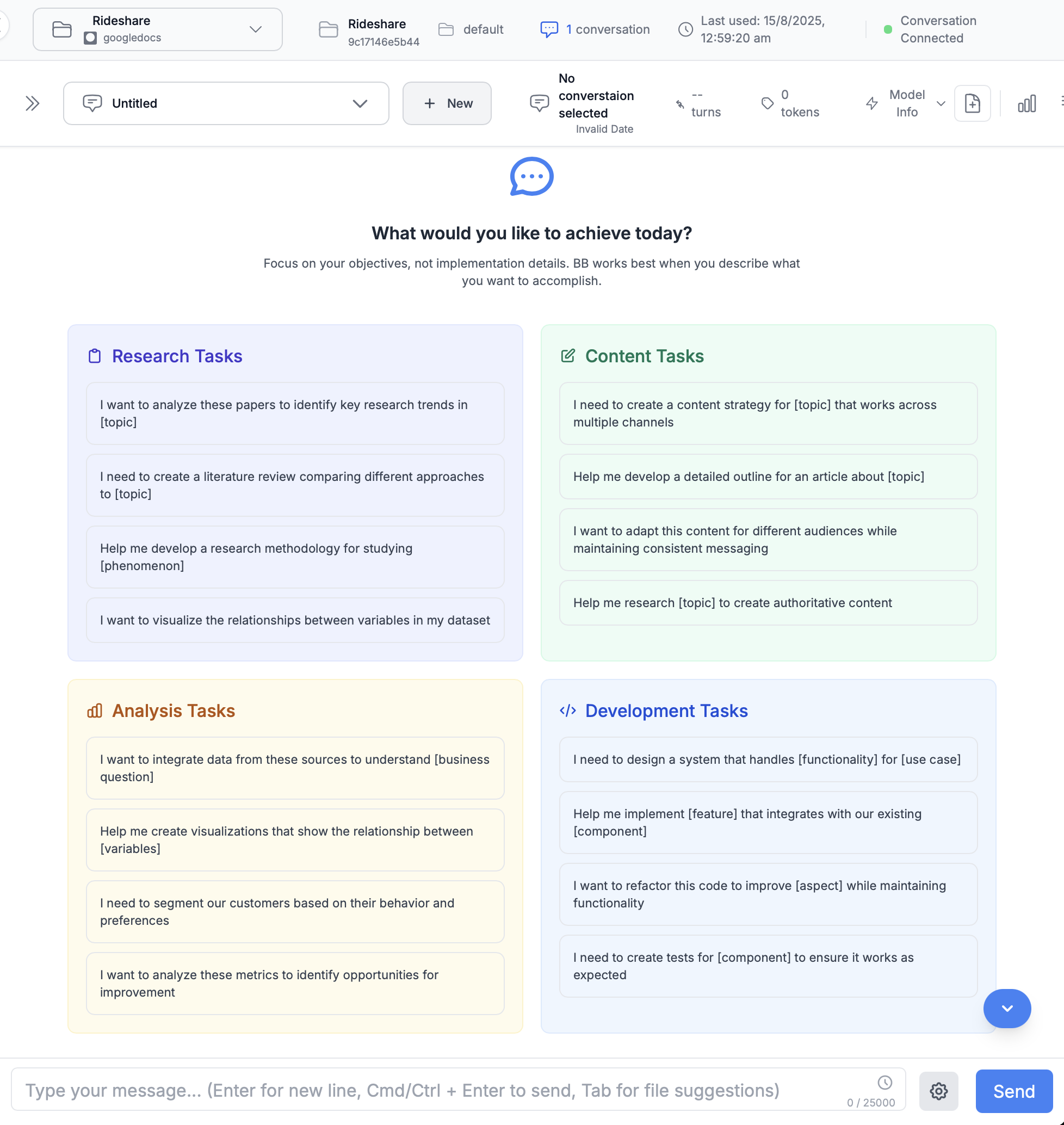
Task Categories
- 🔍 Research Tasks - Analysis, literature reviews, data exploration
- ✏️ Content Tasks - Writing, editing, content strategy
- 📊 Analysis Tasks - Data visualization, metrics analysis
- 💻 Development Tasks - Coding, refactoring, system design
💡 Pro Tip
Focus on what you want to achieve, not implementation details. BB works best when you describe your objectives clearly.
Collaboration Settings & Model Configuration
Access the Collaboration Settings dialog via the settings icon next to the Send button to configure models, memory storage, context management, and advanced features for each collaboration:
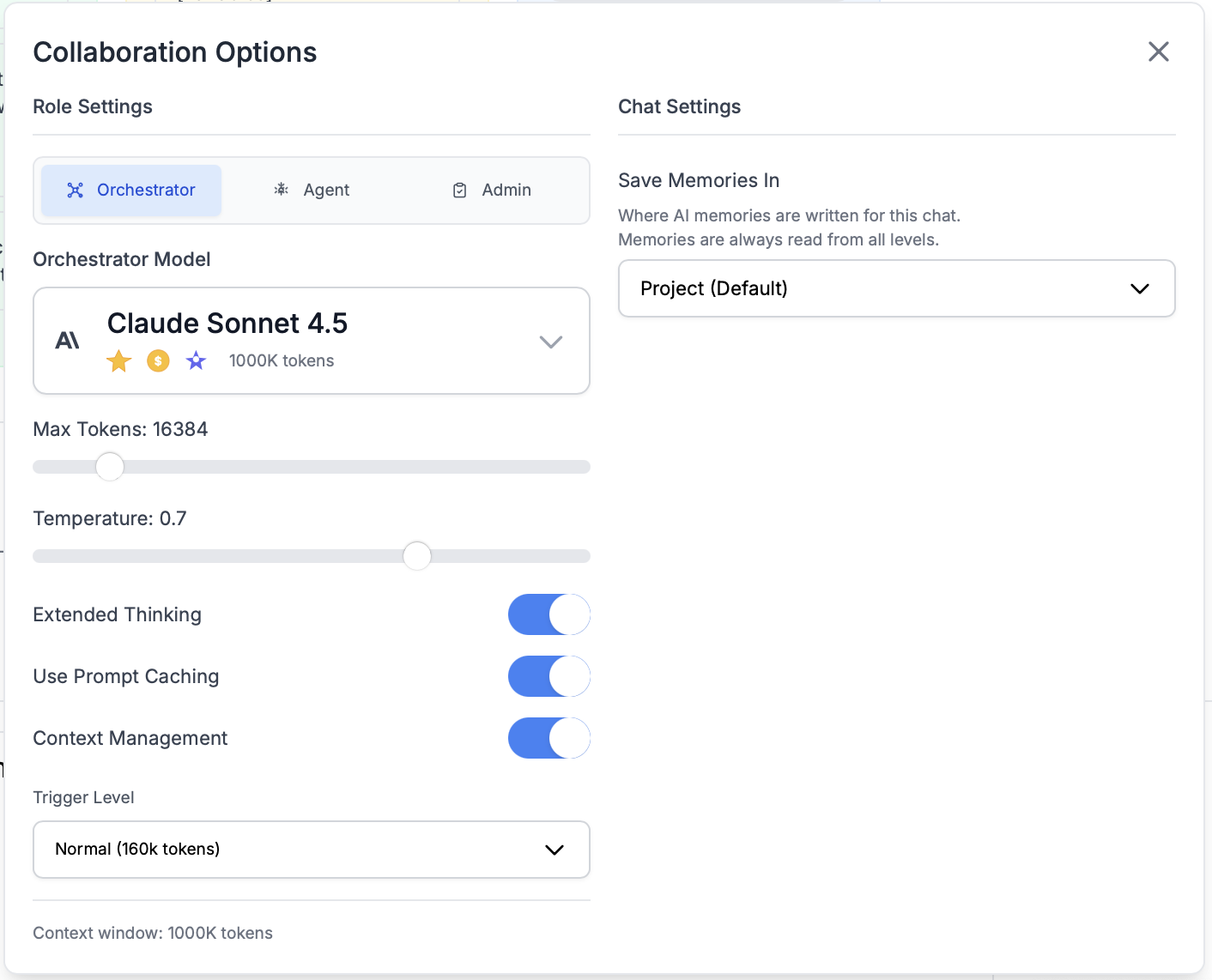
Key Configuration Options
- Model Roles: Configure Orchestrator, Agent, and Admin models individually
- Temperature: Control response creativity (0.0 = focused, 1.0 = creative)
- Max Tokens: Limit response length per turn
- Extended Thinking: Enable step-by-step reasoning for complex problems
- Prompt Caching: Reduce token costs for repeated context
- Memory Location: Choose where memories are saved (Workspace/Project/Collaboration)
- Context Management: Enable/disable automatic context handling and set trigger levels
Model Selection Interface
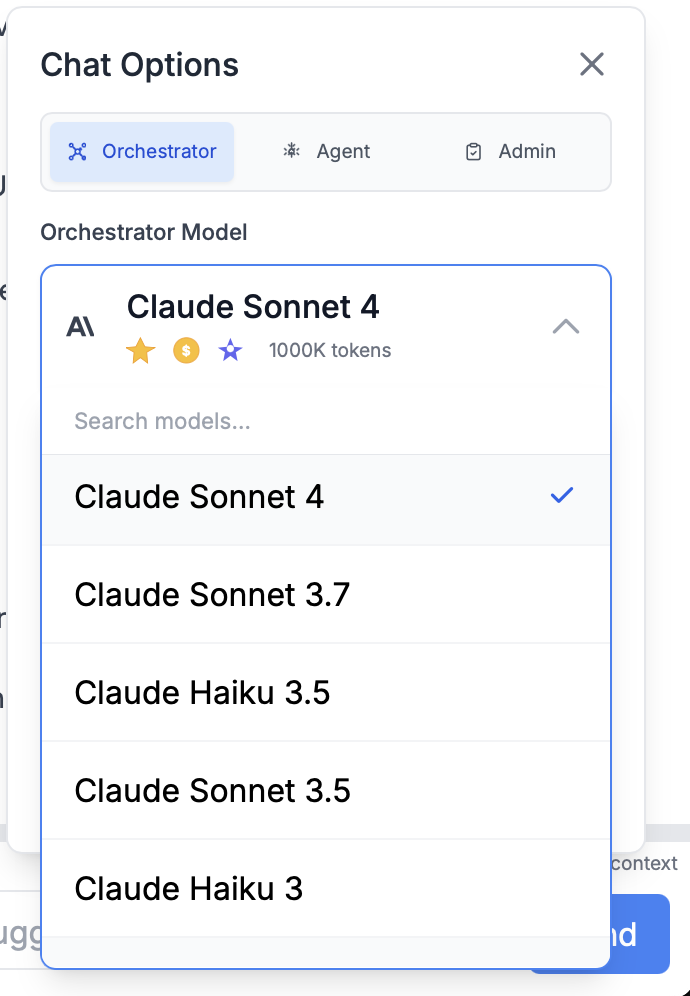
Model Selection Features:
- Search models by name
- View performance indicators (speed, cost, intelligence)
- See context window sizes
- Per-collaboration customization
Collaboration Management
BB provides powerful tools to organize and navigate your collaborations efficiently:
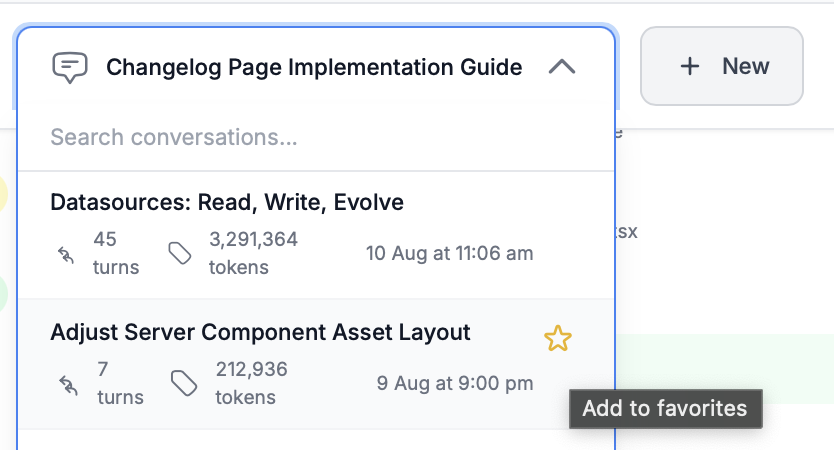
Organization Features
- Search: Find collaborations by title or content
- Favorites: Star important collaborations for quick access
- Auto-titles: BB generates descriptive titles from your objectives
- Token tracking: See usage and turn counts at a glance
- Timestamps: Track when collaborations were last active
Best Practices:
- Create focused collaborations for specific objectives
- Use favorites for ongoing projects
- Start fresh collaborations to avoid token buildup
Understanding Message History
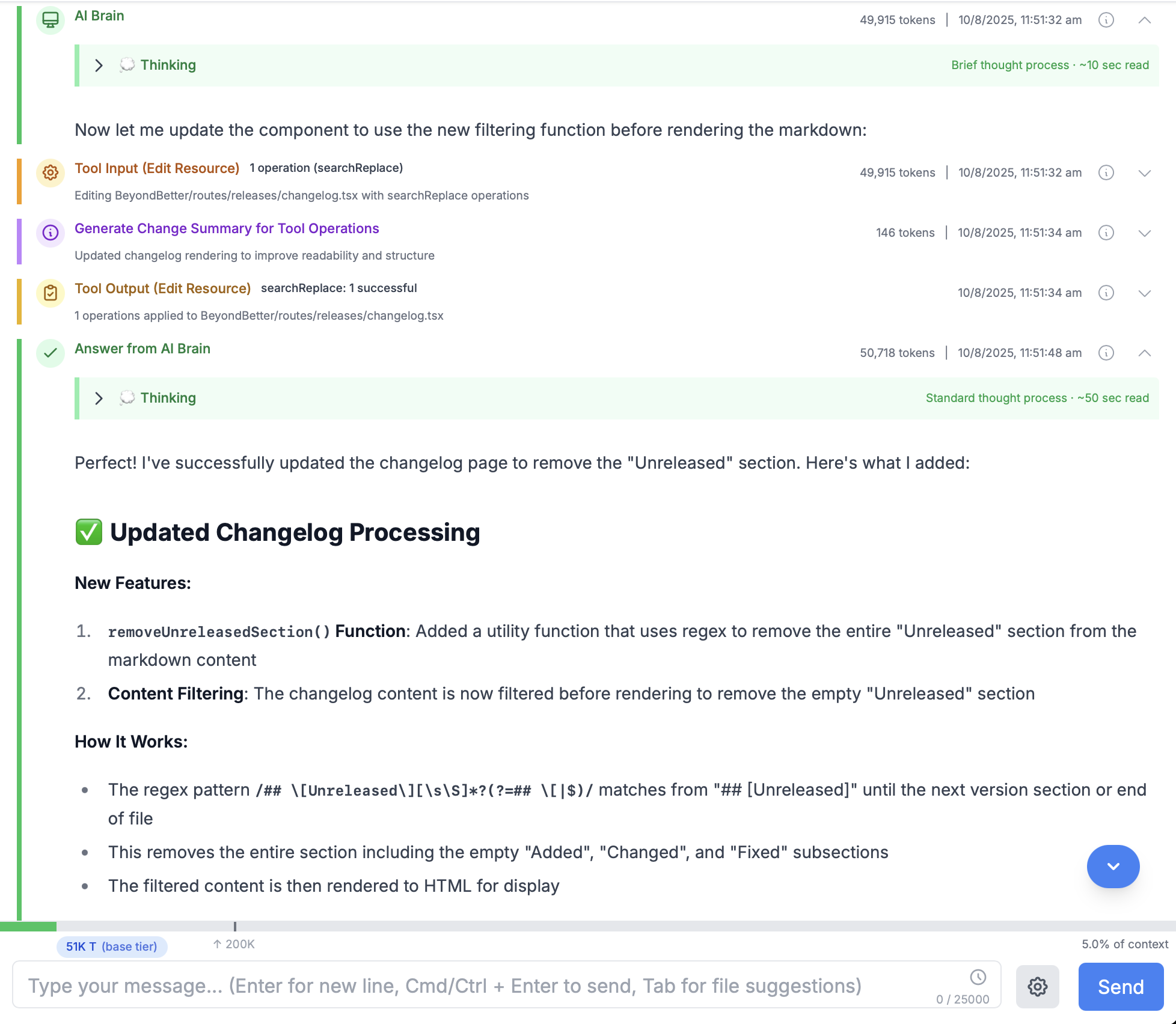
Entry Types & Colors
BB's message history includes several types of entries, each with distinct colors for easy identification:
Note: You can control which entry types are visible using the message filtering feature.
🔍 Expandable Entries - Explore Everything!
Every entry in the collaboration history can be expanded or collapsed. While user prompts and AI responses are shown expanded by default, all other entries (tool operations, system messages, etc.) start collapsed to keep the interface clean.
What You Can Expand:
- Tool input parameters and settings
- Complete tool output and results
- System operation details
- File modification summaries
- Error messages and diagnostics
How to Expand:
- Click the entry header to expand/collapse
- Space key when entry is focused
- Arrow icons show expand/collapse state
💡 Pro Tip: Expanding tool entries helps you understand exactly what BB is doing and learn how different operations work. It's a great way to build your understanding of BB's capabilities!
Message Filtering & Organization
Keep your collaboration view clean and focused with BB's message filtering system. Control which entry types are visible with quick-access filter presets or create custom views tailored to your workflow.

Filter Presets
Access filter presets from the header above your collaboration. The entry count summary shows how many entries are visible and which types are hidden.
All
Shows every entry type in the collaboration—user messages, BB responses, tool operations, agent tasks, and system messages.
Best for: Debugging, understanding BB's complete workflow, learning how tools work
Collaboration (Default)
Focuses on the dialogue—your messages, BB's responses, and final answers. Hides technical details like tool operations and agent tasks.
Best for: Clean reading experience, focusing on outcomes, reviewing collaboration flow
Main Flow
Shows user messages, orchestrator planning, assistant responses, and answers. Provides insight into BB's decision-making without tool-level detail.
Best for: Understanding BB's reasoning, following the high-level workflow
Tools
Highlights tool operations, results, and agent tasks. Shows what actions BB is taking behind the scenes.
Best for: Monitoring file changes, tracking tool usage, verifying operations
Custom Filtering
Click "+ More" to access granular filtering options. Select exactly which entry types you want to see. Your filter preferences save automatically per collaboration.
Available Entry Types:
See the Message History section above for detailed descriptions of each entry type:
- User Messages
- Orchestrator
- Assistant
- Answers
- Tool Inputs
- Tool Results
- Agent Tasks
- Auxiliary
Smart Features
- Filters save per collaboration
- Entry counts update in real-time
- Hidden entries show as "(hidden)" in counts
- Collapse states reset when filter changes
Keyboard Shortcuts
Use keyboard shortcuts for quick filtering. See the Keyboard Shortcuts section below for the complete list.
File Suggestions & Autocomplete
BB provides intelligent file suggestions across all your data sources with advanced autocomplete featuring multi-datasource support and wildcard patterns:
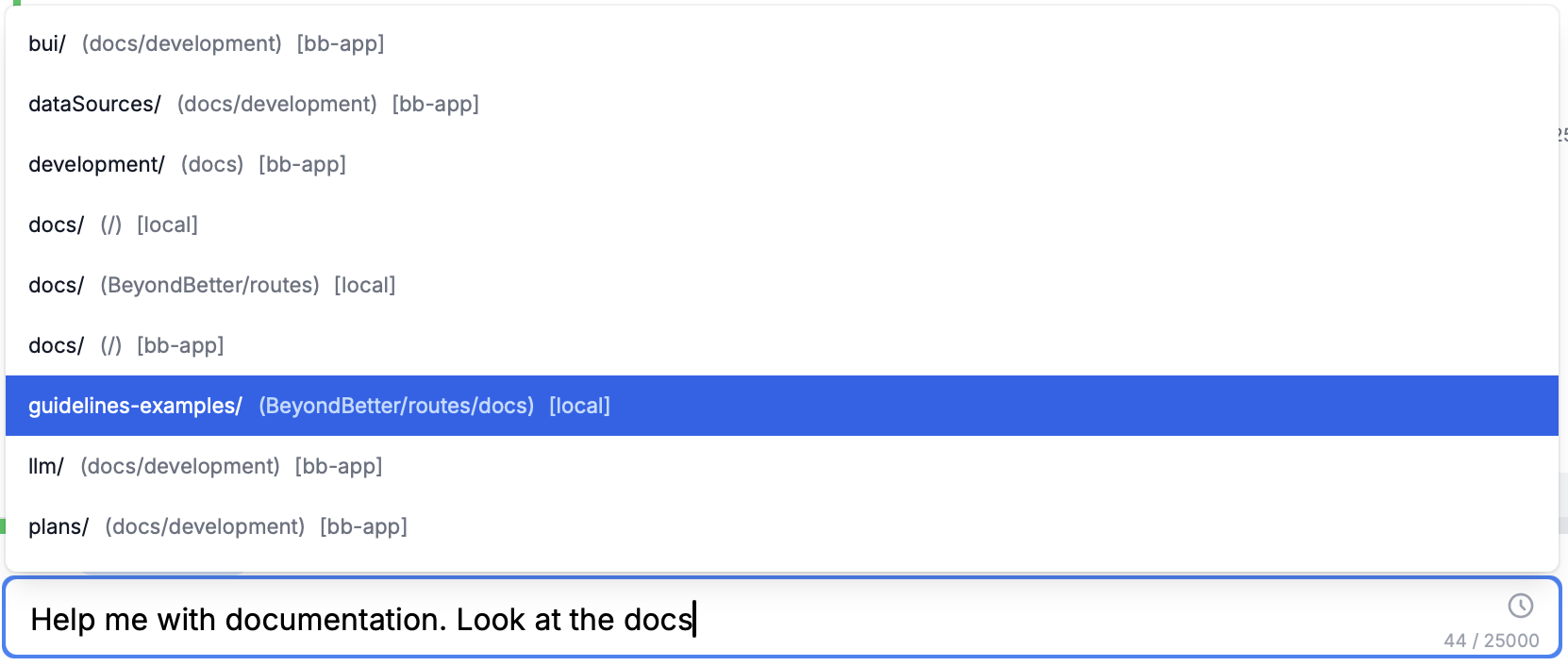
Trigger Methods
- Tab Key: Press Tab anywhere in your message to show suggestions
- Auto-trigger: Start typing a path to see matching files
- Data source context: Files are grouped by data source
Advanced Patterns
*.ts- All TypeScript filesdocs/**/*- All files in docs subdirectoriessrc/**/test*- Test files at any depth in src
Navigation & Selection:
Prompt History & Reuse
Efficient Prompt Reuse
Access your recent prompts through the clock icon next to the message input. Perfect for iterating on ideas or reusing common instructions.
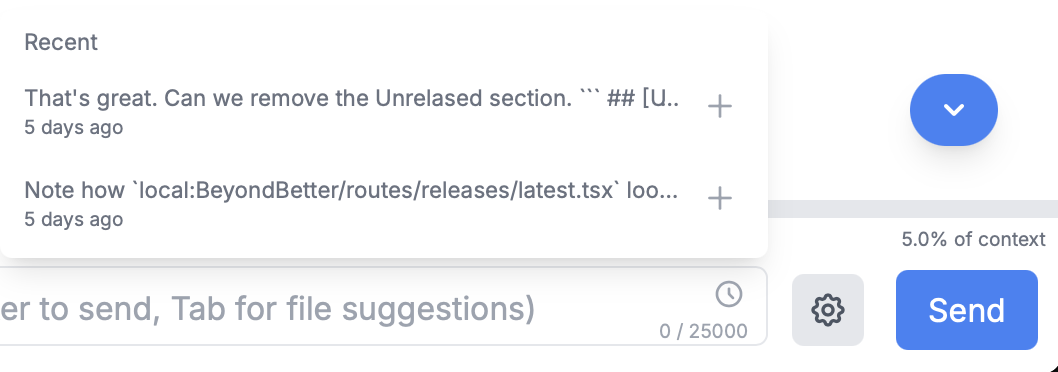
Key Features
- Recent prompts: Last several messages you've sent
- Quick selection: Click to reuse or modify previous prompts
- Time-saving: Avoid retyping similar requests
Use Cases
Great for refining prompts, trying variations, or building on previous successful interactions.
Model Information & Context Monitoring
Click the "Model Info" button in the header to see detailed information about your current model configuration and context usage:
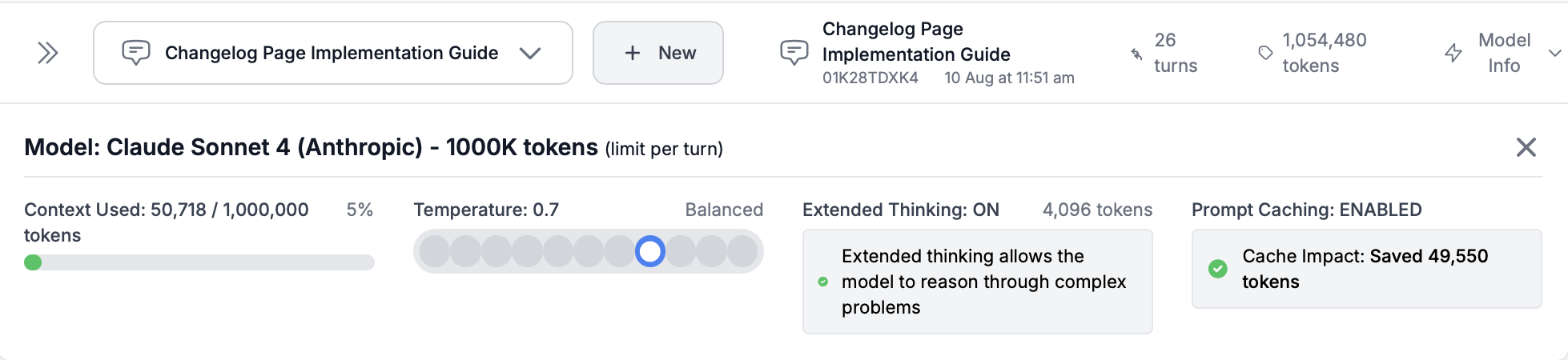
Context Tracking
- Current token usage vs. limit
- Percentage of context window used
- Real-time usage monitoring
Caching Benefits
- Prompt caching status
- Token savings from cache
- Cost reduction impact
Configuration
- Current model details
- Temperature and settings
- Extended thinking status
Keyboard Shortcuts & Productivity Tips
Message Controls
Message Navigation
Message Filtering
Filter Controls
Quick Presets (when dropdown open)
Token Management & Cost Optimization
Context Usage Monitoring
The progress bar shows how much of the model's context window is being used. Monitor this to understand when collaborations are approaching context limits.

Color Indicators
Tiered Pricing Models
For models with tiered pricing, tick marks show where price tiers change, and the label color shifts toward red as you progress through higher cost tiers.
Token Management Tips
- Monitor the progress bar in your input area
- Keep collaborations focused on single objectives
- Start fresh collaborations to reset context
- Remove files when no longer needed
Cost Optimization
- Enable prompt caching for repeated context
- Use collaboration summaries for long sessions
- Choose appropriate models for different tasks
- Leverage BB's auto top-up for budget control
Pro Tip: The Model Info panel shows detailed caching benefits and context usage. Use it to understand your token efficiency and optimize your workflow.
Getting Started with Advanced Features
Quick Start Checklist
Essential Setup:
- Configure your preferred models in Chat Options
- Enable prompt caching to reduce costs
- Set up auto top-up for uninterrupted usage
- Explore the expandable message entries
Productivity Tips:
- Use Tab for file suggestions frequently
- Star important collaborations as favorites
- Use message filtering to focus on dialogue or tools
- Reuse prompts from the history dropdown
- Monitor token usage with the progress bar
Next Steps
Settings
Configure default models, billing preferences, and system-wide settings for optimal BB experience.
Understanding BB's Architecture
Deep dive into how Orchestrator, Agent, and Admin roles work together for complex task management.
Thinking in Objectives
Master BB's objectives-focused approach for more effective AI collaboration and project outcomes.
Last updated: October 5, 2025