Intelligent Memory System
BB's memory system means you never have to re-explain your context. Memories are saved at the workspace, project, or collaboration level — so the right information is available to the right people, exactly when they need it.
Why Memory Matters
Traditional LLM interactions start fresh every time. BB's memory system changes this by allowing the LLM to remember and recall information across collaborations, building a persistent knowledge base that improves over time.
Without Memory
- Repeat project context in every collaboration
- Re-explain preferences and conventions
- Lose insights when collaborations end
- No shared context across your team
With BB Memory
- LLM remembers your project structure
- Recalls your coding style and preferences
- Builds knowledge from past collaborations
- Shares insights across your team
Multi-Level Memory Architecture
BB organizes memories into three levels, each serving a different purpose. Memories are always read from all levels, creating a rich context. You control where new memories are written.
🏢 Workspace Memories
Scope: Shared across your whole workspace — visible to all team members
Best for: Team conventions, shared client context, domain knowledge, and anything the whole team should know
Example Use Cases:
- "Our team uses TypeScript with strict mode enabled"
- "Client prefers formal tone in all written deliverables"
- "We follow the Airbnb style guide for JavaScript"
- "This workspace covers the healthcare domain with HIPAA requirements"
📁 Project Memories
Scope: Available to all collaborations within a specific project
Best for: Project-specific architecture, design decisions, coding patterns, team conventions, domain knowledge
Example Use Cases:
- "This project uses Deno Fresh framework"
- "Authentication is handled by the /auth/middleware module"
- "We use a custom logger in utils/logger.ts"
- "The database schema is in the /db/schema directory"
💬 Collaboration Memories
Scope: Specific to one collaboration only
Best for: Task-specific context, temporary notes, exploratory work, one-off experiments
Example Use Cases:
- "User reported bug in the login flow on mobile devices"
- "Exploring performance optimization for the search feature"
- "Testing new approach to data caching"
- "Working on prototype for client presentation"
How Memory Works
Automatic Memory Management
The LLM automatically decides what information is worth remembering and saves it to your configured location. This happens in the background without interrupting your workflow.
What Gets Remembered:
- Important project decisions and rationale
- Coding patterns and conventions you establish
- Key architecture and design choices
- Domain knowledge and business logic
- User preferences and working style
User Control
While the LLM manages memories automatically, you maintain full control over the system:
What You Can Do:
- Choose where memories are saved (global/project/collaboration)
- Manually add important information to memory
- Review and modify existing memories
- Remove memories that are no longer relevant
- Search memories to find specific information
📖 How Memories Are Read
When you start a collaboration, BB loads memories from all three levels, creating a comprehensive context:
- Workspace memories load first (shared team conventions and context)
- Project memories add project-specific context
- Collaboration memories provide collaboration-specific details
- The LLM uses this combined knowledge to provide better, more contextual responses
Configuring Memory Settings
Control where new memories are saved through BB's cascading settings system. You can configure defaults globally, override them per project, and adjust them for individual collaborations.
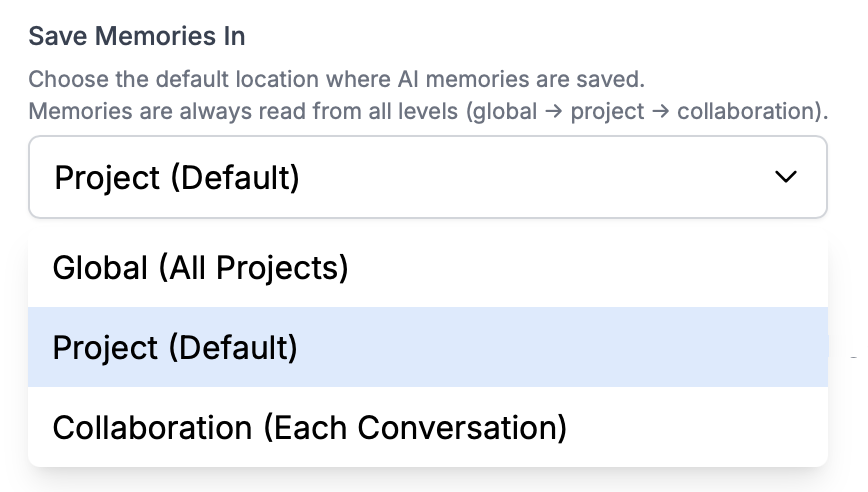
Default memory location
Set your default memory location in Settings. This applies to all projects unless overridden at the project or collaboration level.
Recommended: Set to "Project" for most users. This keeps memories organised by project and makes them available to all collaborations — and all team members — within that project.
Project Settings
Override the global default for specific projects in Project Settings. Useful when a project needs different memory behavior.
Example: Use "Global" for experimental projects where you want to capture learnings that apply everywhere.
Collaboration Settings
Change memory location for individual collaborations in Collaboration Options. Perfect for temporary work or exploration.
Example: Use "Collaboration" when testing ideas you don't want to permanently save to project memory.
Best Practices
✅ Effective Memory Usage
- Use Project as default: Keeps memories organised by project and accessible to all collaborations — and all team members — within that project
- Save team-wide context at workspace level: Conventions, client context, and domain knowledge that everyone on your team should know
- Document important decisions: Let the LLM remember why you made key architectural choices
- Use collaboration memories for experiments: Try things without permanently affecting project knowledge
- Review memories periodically: Remove outdated information to keep the knowledge base accurate
⚠️ What to Avoid
- Don't save everything: Let the LLM decide what's important—trust its automatic management
- Avoid duplicate information: If something is already in global memory, don't repeat it in project memory
- Don't store sensitive data: Memories are stored as files—follow your security practices
- Avoid overly specific details: Save patterns and principles, not every implementation detail
Advanced: Direct Memory Access
For advanced users: Memories are stored as Markdown files in your project's data directory. You can directly view and edit these files if needed.
Location: [config-root]/projects/[project-id]/memories/
⚠️ Caution:
Direct file editing is for advanced users only. Improperly formatted memory files may cause issues. It's generally better to use BB's memory management features.
Coming Soon
Future Memory Features
- Memory Management UI: Search, browse, edit, and organise memories through a dedicated interface
- Memory Export/Import: Share memory files between projects or workspaces
- Memory Analytics: Understand what BB is learning and how memories are being used across your workspace
Next Steps
Context Management
Learn how BB automatically manages collaboration context to handle unlimited collaboration lengths without hitting token limits.
Global Settings
Configure your default memory location and other system-wide preferences.
Teams & Workspaces
How workspace-level memories fit into the broader team and workspace structure.
Last updated: March 7, 2026